How Does the Guest List & RSVP Tracker Work?
The tracker runs 3 short setup steps, then hands you a live dashboard you keep adding to. The setup takes about a minute on a phone or laptop, with no signup, and no email asked for.
Step 1, event basics. Enter the event name and the date. Both head the dashboard and the printed list, so the caterer and the helper on the door are reading the same event.
Step 2, guest groups. Name the groups you want guests sorted into. The tracker starts you with Family, Friends, Work, and Plus-ones; rename any of them or add your own, up to 8 groups in total. The groups are what the printed list breaks into, so pick the split you would actually hand to someone.
Step 3, review. Check the basics back, then open the dashboard.
From there you add guests one at a time through the Add Guest form. Each guest carries a name, a group, an RSVP state, a plus-one allowance, any dietary flags that apply, a "Don't seat with" note for the person running the tables, a gift-received tick, and a free-text notes field.
🛒 As an Amazon Associate, we earn from qualifying purchases, at no extra cost to you.
Why the Guest List & RSVP Tracker Beats a Group Chat and a Notes App
A group chat plus a notes app is where many hosts start an invite list, and it turns into a planning week of cross-referencing between 3 platforms. The tracker ends that by holding every response, dietary flag, plus-one decision, and seating conflict in a single live row per guest, kept in the browser you set it up in and ready every day until the party.
Four reasons hosts choose the tracker over a phone-and-paper system.
- One place everyone can trust. Group chats produce partial replies across 2 or 3 message threads, paper lists fall behind real-time updates, and notes apps split across devices. The tracker pulls the whole invite list into one dashboard, with the RSVP state, the dietary flags, the plus-one allowance, and the seating conflicts all visible at a glance, filterable by any of 3: RSVP state, group, or dietary flag. Export the CSV or hit Copy Table and the partner running the seating chart is reading the same list, with nothing to cross-reference between apps.
- Dietary flags logged on entry, not on the day. A peanut allergy mentioned in a group chat in week 4 gets forgotten by week 8. The tracker carries 8 flags on the same row as the RSVP (vegan, vegetarian, gluten-free, nut allergy, dairy-free, kosher, halal, other), so the caterer roll-up counts each flag in use and names the guests under it, without you having to remember who said what. Anything the flags do not cover goes in that guest's notes field, so a cross-contamination worry travels with the row instead of living in your head.
- Plus-ones tracked per guest, not guessed at the end. A 60-person invite list with plus-ones unaccounted for produces a catering count the venue cannot seat. The tracker carries a plus-one allowance on each guest row, so you can see at a glance which invitations carry one and which do not. Skip that and the overshoot stays hidden until the caterer asks for a final number.
- A caterer-ready export without the retyping. The CSV drops the whole list into the caterer's spreadsheet with one click, carrying name, group, RSVP, plus-one, dietary, conflicts, gift and notes per row. The print view goes further and builds the caterer's dietary roll-up for them, naming who sits behind each flag. Hand a caterer a screenshot of a group chat and a round of follow-up questions comes back; the export cuts that to a single confirmation email.
A few tools pick up where the tracker leaves off. The Seating Chart Planner builds the seated-table layout once the headcount settles, the Party Planning Timeline sets the wider planning calendar around the RSVP window, and the Party Servings Estimator works out the food-and-drink quantities from your final confirmed headcount.
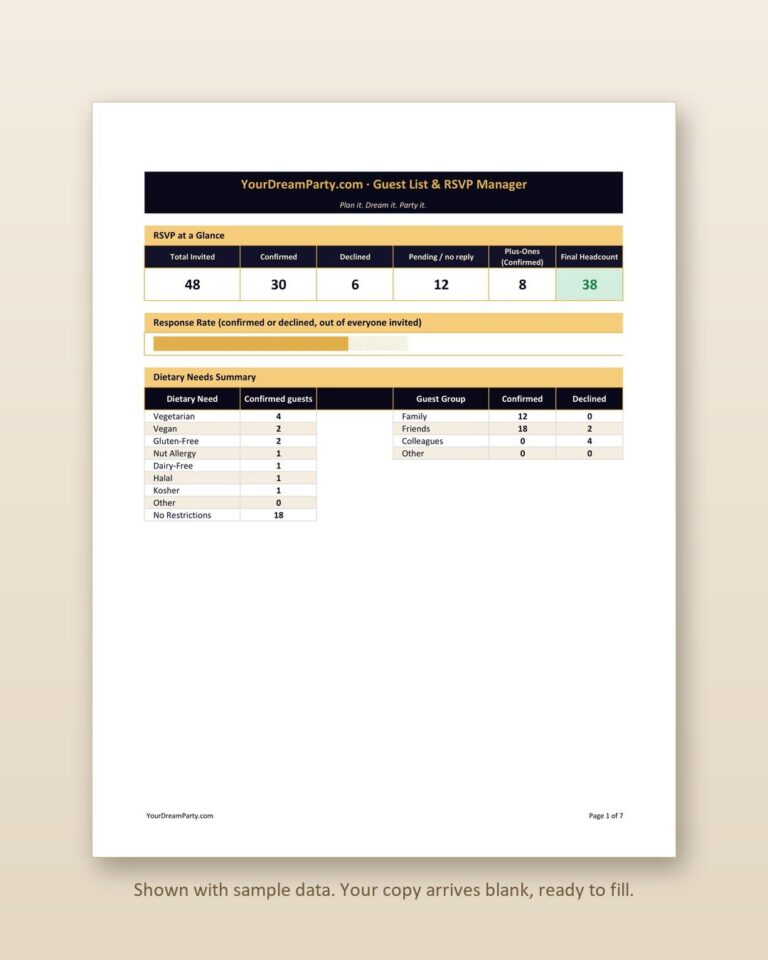
Guest List & RSVP Manager
- Guest List for up to 500 guests, one row each, with a Notes column
- Dropdowns for RSVP status, plus-one, dietary need and group
- RSVP colors: green Confirmed, red Declined, yellow Pending
- RSVP Summary: invited, confirmed, declined, waiting and final headcount
What the Guest List & RSVP Tracker Builds for Your Headcount
The dashboard turns the guest rows into a concrete next step for the planning week or the caterer summary.
RSVP summary. A live tally across the 4 states the tracker holds, pending, yes, no, and maybe, updating as you change rows. It is your at-a-glance view the whole time you plan, and it heads the printed list too.
Guest record table. A row-per-guest table showing name, group, RSVP state, plus-one allowance, and dietary flags. Every row is editable from the dashboard, and a state change from pending to yes moves the tally straight away. Filters sit above the table for RSVP state, group, and dietary flag, so you can pull up only the pending replies, or only the nut allergies.
Dietary roll-up. The caterer's version: each flag in play, how many guests carry it, and which guests those are by name. It sits on the printed sheet under its own heading, so the caterer is not reading your whole guest list to find the 4 people who need something different.
Seating conflicts list. Everything anyone entered in "Don't seat with", pulled into one list on the printed sheet for whoever is drawing the table plan. It is a conflict list, not a table layout: it tells the planner what to avoid, leaving where people actually sit to them.
Caterer-ready export. The CSV downloads the per-guest records straight into a spreadsheet, carrying name, group, RSVP, plus-one, dietary, conflicts, gift and notes. Copy Table puts the same columns on your clipboard for people who prefer pasting to attaching, and Email List sends you the counts and a name, group and RSVP line per guest. Every one of them regenerates from the live tracker, so a late change from yes to no goes out without manual edits.
Printable check-in list. The print view builds a door-check-in sheet for the day-of helper, broken into your groups, each with name, RSVP, plus-one and dietary inline, then the dietary roll-up and the seating conflicts behind it. The helper uses it to work the entrance and flag the kitchen on the nut allergies.
Run the Tracker Across Common Hosting Situations
Here are 3 sample lists. Each runs the same 3 setup steps, but the guest rows send it somewhere different.
Pattern 1, 40-guest dinner party, 6-week planning window. You get a 40-row guest list sorted into Family, Friends and Work, a plus-one allowance on each row, a dietary roll-up naming who sits behind each flag, a short seating-conflicts list, and a CSV for the caterer. That combination fits an adult-birthday or milestone-anniversary dinner party, whether at home or in a restaurant private dining room. For a shower list, the baby shower guest list and RSVP management guide covers chasing replies and pulling dietary flags.
Pattern 2, 120-guest wedding reception, 12-week planning window. Here the tracker holds a 120-row guest list with a plus-one allowance per row, the 8 dietary flags plus a notes field for whatever they do not cover, a seating-conflicts list long enough to matter at that size, and a CSV the venue and the caterer can both work from. It fits a traditional wedding reception where the venue and the caterer are separate vendors.
Pattern 3, 80-guest milestone graduation, 8-week planning window. This run produces an 80-row guest list split into groups you name yourself (grandparents, parents, friends-of-graduate, friends-of-parents), a dietary roll-up for the buffet station, a seating-conflicts list for the family tables, and a CSV export for the caterer. It suits a graduation party where the family spans several generations and the catering summary needs a per-group guest count.
For the wider planning picture, the baby shower planning checklist walks through the shower-specific RSVP rhythm, wedding seating arrangements covers the table layout the conflicts list feeds into, and the party planning checklist guide maps the wider calendar the RSVP window sits inside.
Pick the Right Answers Before You Open the Tracker
A few answers sharpen the dashboard. Run through these before you start, so the tracker works from solid data instead of guesses.
Size the invite list to the venue capacity, not the wish list. A 50-person venue with a 60-person invite list turns into an over-capacity event once plus-ones land. The tracker records a plus-one as a tick on the guest's own row and counts the ticks in a separate "Guests allowed a plus-one" line. Add that number to "Total invited" to see the most people who could arrive. Keep the invite list comfortably below the venue capacity, so the plus-one expansion has somewhere to go.
Set your RSVP deadline around the final catering count, not the event date. The final catering count usually goes in 7 days before the event; the print order for seating cards usually goes in 14 days before. Ask for replies at least 7 days before that count is due so you have time to chase stragglers. Three weeks ahead works for adult events; kids events usually need 4, because parent-network coordination is slower.
Use the notes field where the flags run out. The 8 dietary flags cover the common ground, and for a drop-in event with passed canapés that is usually the whole story. A seated dinner with a plated menu is where the notes field earns its place, because cross-contamination, religious observance, and plain preference all need a sentence, not a tick. Log it on the row when the guest tells you, not on the day.
Plan the plus-one allowance before the invitations go out. Plus-one traditions vary: a wedding usually extends plus-ones to married guests and long-term partners; a milestone birthday extends them to anyone the host wants; a kids party usually skips them (parents come with the kid). Decide who gets a plus-one at the invitation stage and apply the same approach across the whole list. The tracker records that decision on each row, so the partner reviewing the list can see it is consistent.
Walk the day-of helper through the check-in list 48 hours ahead. The printed check-in list is what the helper uses at the entrance to flag the kitchen on dietary needs and point guests to the right group. It takes about 30 minutes to go through with them: the names, the groups, the dietary flags, the plus-one indicators. Do it at least 48 hours before the event, so the day-of check-in runs smoothly.
Send the export before the final catering count goes in. The CSV and the print view both regenerate from the live tracker on demand, but the catering numbers lock at the 7-day mark. Export at that point, send it to the caterer and the venue, and treat anything that changes afterward as a phone call, not a silent edit.
Frequently Asked Questions
Is the Guest List & RSVP Tracker actually free?
Yes. The tracker, the RSVP summary, the guest record table, the dietary roll-up, the seating-conflicts list, the CSV export, and the printable check-in list are free, and nothing asks you to sign up. Want the offline version? The Guest List & RSVP Manager Excel workbook ($7.00) adds a fillable spreadsheet, conditional formatting for RSVP states, and a print-ready guest list for door check-in.
How do I make a guest list for a party?
Start with the venue capacity (the firm ceiling), hold the invite list under it with room for plus-ones to spare, set who qualifies for a plus-one (married guests, long-term partners, open invitation), and agree on the groups you want people sorted into before the invitations go out. The tracker pulls every row into a single dashboard with RSVP state, dietary flags, and plus-one allowance visible at a glance all planning week.
When should I send party invitations?
Send them at least 4 weeks out for an adult party and by 6 weeks out for a wedding, and give a kids party extra lead time, since its RSVP deadline comes earlier. The RSVP deadline typically sits 3 weeks before the event for adult events and 4 weeks before for kids events. Filter the tracker to the pending rows and you have your chase list.
Can the tracker handle plus-ones?
Yes, as an allowance per guest. Each row carries a plus-one tick showing whether that invitation extends to someone else, and it travels through to the CSV and the printed list. Hosts who want the partner named as well can add them as their own row in the Plus-ones group, which keeps the headcount honest.
How do I track dietary restrictions for a party?
The tracker logs the dietary flags on the same row as the RSVP. Eight flags cover the standard ground (vegan, vegetarian, gluten-free, nut allergy, dairy-free, kosher, halal, other), and the notes field on each guest takes anything they miss, such as cross-contamination, religious observance, or plain preference. The printed roll-up gives the caterer both the count per flag and the names behind it.
Can I save or share the guest list?
Yes. The dashboard exports as a CSV for the caterer and the venue, copies to the clipboard as a table, emails you the counts and the guest names, and prints as a check-in sheet for the day-of helper. The tracker stays saved on the phone or laptop you built it on all planning week, so updates regenerate the exports on demand.
Can multiple hosts edit the tracker?
No. The tracker saves to your browser, on your device, so there is no shared login or live sync between co-hosts. To hand off the current guest list, export the CSV or use Copy Table to paste every row into a message for the partner running the seating chart or the helper handling the catering.
Ready to Build Your Live RSVP Dashboard?
Three setup steps in the Guest List & RSVP Tracker above take a group-chat thread to a live dashboard and its exports: a 4-state RSVP tally, a dietary roll-up naming who sits behind each flag, a seating-conflicts list, a caterer-ready CSV, and a printable check-in list. The Guest List & RSVP Manager below takes it further with a fillable Excel spreadsheet, conditional formatting for every RSVP state, and a print-ready guest list for door check-in.
This page contains affiliate links to Amazon and other retailers. As an Amazon Associate, we earn from qualifying purchases at no extra cost to you. This helps us keep all our tools free.
Results generated by this tool are for planning and inspiration purposes only. Estimates are based on general guidelines and may vary depending on your specific circumstances. Always verify with your suppliers before making purchasing decisions.
Results are for planning and inspiration purposes only. Always check for food allergies before serving. Always verify with your suppliers before purchasing.