How Does the Seating Chart Planner Work?
Setup is 4 short steps, and then the planner opens as a working canvas you fill in yourself, so the layout matches the event you are actually staging, not a generic 100-guest wedding preset. The setup takes under 5 minutes on your phone or laptop, with no signup and no email before you see the layout.
Step 1, event type. Pick from 10 event cards (birthday, baby shower, wedding, bachelorette, kids party, anniversary, graduation, milestone birthday, holiday, other, where the "other" card covers corporate, reunion, and dinner-party seating). Your pick titles the chart, tags the exports, and decides which Party Shop collection, if any, shows up under your results.
Step 2, how many tables. Type your table count in the box (1 to 50) or tap a preset chip (3, 5, 8, 12, or 20). Push a number past either end and the planner pulls it back with a note, and the count you settle on is what the canvas draws when you start planning.
Step 3, table shape. Choose round (9 seats by default), rectangular (11), long banquet (14), square (4), or mixed shapes if the venue gives you a mix. The shape draws the table on the canvas and sets the starting seat count each table is measured against, which you can change in the Seats box on its card, and mixed starts every table round so you can switch them one at a time later, from the Shape button on each table card or a right-click on the canvas.
Step 4, review and open the planner. The review card plays back your event type, your table count, and your shape with its seats per table, and the Start Planning button swaps the setup out for the planner itself: guest panel on the left, table canvas in the middle, summary column on the right, stacked one under another on narrower screens.
Then the workspace. Add guests one at a time (name, one of 8 dietary flags, a VIP star, and an optional avoid-pairing name) or open Paste a batch and drop in one name per line. On a laptop, drag a guest card onto a table to seat them and drag it back to Unassigned to lift them off; on any screen, each card's Assign to menu seats them too, and × lifts a guest off again. Then reach for Export Text, Export PDF, Print, or Email My Seating Chart once the board looks right.
🛒 As an Amazon Associate, we earn from qualifying purchases, at no extra cost to you.
Acrylic Seating Chart Board
Check Price on AmazonTable Number Holders
Shop on AmazonEscort Card Display
Shop on AmazonWhy the Seating Chart Planner Beats a Sticky-Note Shuffle
A sticky-note shuffle on the dining table feels like the easy way to seat a party, but it quietly costs you. Plan from physical notes and you lose track of moved guests after the third revision. You reach the venue to find the final list does not match the kitchen's count, with no way to see an earlier version when a guest flips from yes to no the week of the event. The planner keeps the whole layout in a visual grid instead, saved in your browser, with an unassigned tracker and a conflict check, so a third revision or a last-week cancellation costs a few moves, not the whole board.
Five reasons hosts return to it across wedding revisions and large-event planning.
- Visual table grid scaled to your count. The canvas draws the table count you typed in Step 2, in the shape you picked in Step 3, ringing each table with a seat dot per seat that fills in as you assign people. A 14-table round-table wedding looks different from a 6-table rectangular dinner party, and every table carries its name with a live "6 / 9 seats" line underneath.
- Conflict flags raised at the table. Type a guest's full name into someone else's avoid-pairing box and the Conflicts panel calls it out the moment the two of them end up at one table, naming the pair and the table. It warns rather than locks, so you can still seat them if the family has made peace, and the flag stays live through every later move.
- Unassigned-guest tracker counting down. The sidebar shows the count of guests still without a table assignment. The counter reads "4 unassigned / 36 total" and ticks down as you seat people, and the summary column repeats the split as Total, Seated, and Unassigned. A printed list approach loses this signal entirely; an unseated guest can surface only at the venue, when the place cards come up short.
- Dietary flags carried into the export. Each guest can hold one of 8 flags (vegan, vegetarian, gluten-free, nut allergy, dairy-free, kosher, halal, other), the summary column counts them across everyone already seated, and the flag prints beside the name in both the text file and the PDF table-card pages. Print the board and the kitchen gets the dietary counts and the flagged names in one place, instead of a separate back-and-forth.
- Browser auto-save of the current board. Every assignment, move, and flag saves to your browser as you go. Your work survives a closed tab, a browser refresh, a laptop asleep, and a coffee break. There is no version history sitting behind it, so before a big revision it is worth taking an export as your fallback copy.
The planner slots in alongside a few other tools: the Guest List & RSVP Tracker for tracking RSVPs before anyone gets a seat, the Wedding Reception Planner for the wider reception flow the seating sits inside, and the Party Budget Calculator for estimating the per-guest cost as you plan.
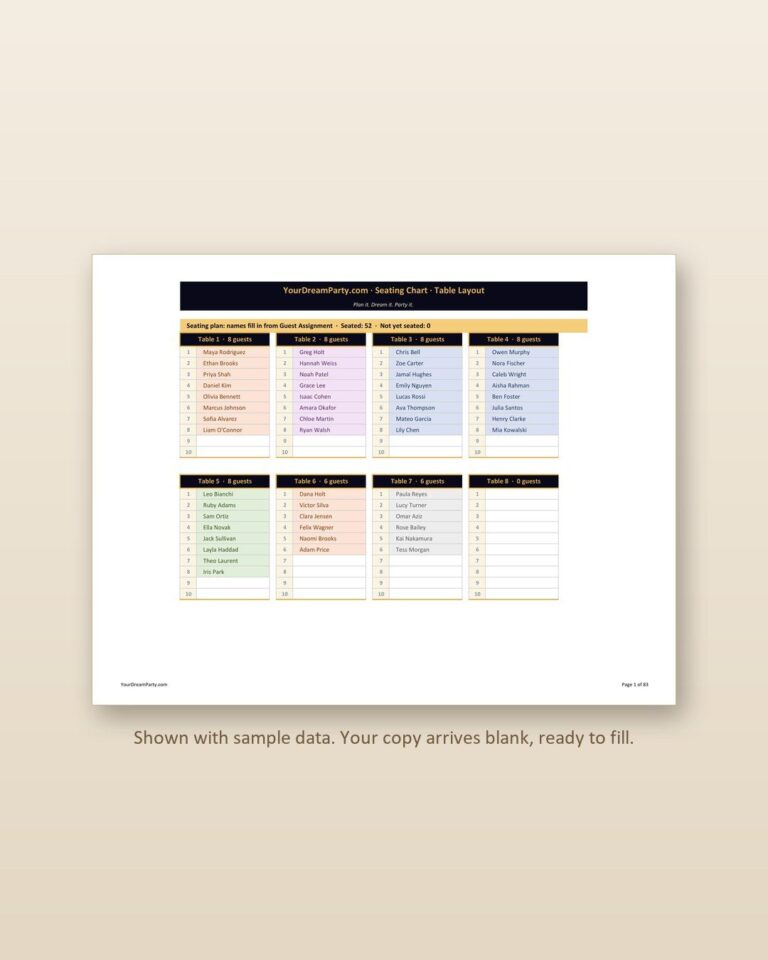
Seating Chart Template
- Guest Assignment for up to 200 guests: table, seat, group and notes
- Table Layout fills in automatically: 20 tables × 10 seats
- Names color-coded by group, with a guest count per table
- Double-booked seats turn red; unseated guests are counted
What the Seating Chart Planner Builds for Your Event
Finish the 4-step setup and the planner opens as a working board, laid out from the answers you gave. Each piece is a concrete next step for the week ahead.
Visual table grid. The canvas draws one shape per table, sized by the shape from Step 3 and ringed with a seat dot for each of its seats, filling in as guests land. Inside each shape sit the table name and its fill, "7 / 9 seats", and the outline runs gray while empty, green while there is room, gold at exactly full, and orange-red with an explicit "Over capacity: 11 / 9" line once you push past it. On phones the canvas gives way to a stacked list of the same tables.
Drag-and-drop guest assignment. Drag a guest card from the left panel onto any table and the planner seats them there, lifting them off whatever table held them before. Nothing is blocked: seat an eleventh guest at a 9-seat round and the table turns orange-red, the summary posts an over-capacity warning, and the call stays yours. Drag the card back onto the Unassigned list to unseat them again.
Unassigned-guest sidebar. The left panel lists every guest not yet at a table, with the running "4 unassigned / 36 total" counter sitting above it. Each card carries that guest's dietary flag, a VIP star, and an Avoid pill when you have typed a name into their avoid box. On any screen the same cards carry an "Assign to" dropdown, so you can place people without dragging anything.
Conflict panel. The right-hand summary keeps a Conflicts block that names each clash as it happens, the guest, the name from their avoid box, and the table the two of them landed at. It fills only when they actually share a table and clears itself the moment you move one of them. You can list several names in one avoid box separated by commas, and each one has to match another guest's full name, letter for letter, for its flag to fire.
Dietary and VIP badges. Every guest card shows what you tagged it with: the dietary flag as a small amber pill, a gold VIP star, and an orange Avoid pill that shows the name you typed when you hover over it. The summary column rolls the dietary flags into counts across everyone already seated, so the vegan and gluten-free totals are there without opening a single table.
VIP list with table lookup. A block in the summary column stars every guest you marked VIP and prints the table they are sitting at, or "unassigned" if they are still waiting in the left panel. It is the quickest way to confirm the couple, the parents, and the guest of honor all landed where you meant them to.
Printable PDF chart. Export PDF builds a landscape US Letter file: page 1 carries the canvas image with your event type, table count, shape, and guest total across the top, then table-card pages follow at 4 tables per page. Each box prints its table name, its shape, its fill against capacity, and every seated guest with a VIP tag and dietary flag in brackets, split into 2 columns and then onto a "(cont.)" box when the table runs longer.
Text export, print, and email. Export Text downloads the chart as a plain file: header lines with the event, table count, shape, and guest total, then every table with its shape and fill and the guests under it with their VIP and dietary flags in brackets, and the unassigned names at the end. Print puts the same board on paper in landscape, and Email My Seating Chart sends the totals and the table-by-table chart to your inbox.
An offline Excel template to go further. Below the planner, the Seating Chart Template Excel lays out 20 tables of 10 seats across its Table Layout, Guest Assignment, Conflict Checker and Place Cards sheets, auto-fills the layout from your guest rows, flags any pair that ends up sharing a table, and prints on US Letter, for anyone who wants an offline, Excel-native reference.
Use the Planner Across Common Seating Layouts
Three sample rooms show how the board changes. Each one runs the same 4-step setup, but different answers open a different board.
Pattern 1, wedding, 15 round tables, 130 guests, 6 avoid-pairs typed in, 4 VIPs starred. Round tables default to 9 seats, so 15 of them carry 135 and leave 5 spare for the late yes. The canvas draws 15 rings of seat dots, the Conflicts panel stays quiet until one of the 6 pairs shares a table, the VIP list shows where the parents and the couple ended up, and the Wedding collection card sits under the results. It suits a mid-size formal wedding.
Pattern 2, milestone birthday, 6 long banquet tables, 70 guests, 2 avoid-pairs typed in. Long banquet is the 14-seat default, so 6 tables carry 84 seats against 70 guests and every table sits well under its line. The counter walks from "70 unassigned" down to zero as you drag, the 2 flagged pairs surface only if they land together, and the Birthday collection card is the one that shows up, since milestone birthday routes there. It is a natural match for milestone adult birthday dinners.
Pattern 3, corporate gala, 20 round tables, 160 guests, 12 of them carrying dietary flags. There is no gala card in Step 1, so this one starts on "Other" (the card that reads corporate, reunion, dinner party), and no Party Shop collection surfaces behind it. Twenty round tables hold 180 seats against 160 guests, the dietary roll-up counts those 12 flags across everyone seated, and the PDF table-card pages give the front-of-house team a table-by-table sheet with the flags printed beside the names. It carries over to other seated gala dinners.
For a closer look at seating logistics and reception flow, the wedding seating arrangements guide digs into seating conventions by style, wedding reception table decorations and room decor covers the visual layer on top of the grid, the Fall Wedding Reception Colors guide carries a fall palette onto the tables, and wedding reception entertainment paces the band or DJ across the evening.
Pick the Right Answers Before You Assign
A few answers sharpen the layout. Run through them first, so the planner has real numbers to work from.
Confirm the real table count with the venue before Step 2, and ask what those tables actually seat. A round table seats 8 or 10 in comfort; squeezing 12 onto a 60-inch round leaves everyone short on elbow room all through dinner. Ask the venue how many their rental tables hold and how the chairs space out, then set the count from what they tell you, pick the shape whose default seat number sits closest, and type the venue's real number into the Seats box on each table card.
Tag every conflict pair before you start assigning. The conflict check only sees the names you type into a guest's avoid box as you add them. Spotting a conflict late (an aunt and a cousin, say) once the grid is half-full means a manual move and, often, a chain of knock-on reshuffles. Spend 10 minutes up front typing those names into the guests as you add them, spelled the way you entered the other guest, and the panel does the watching.
Type the flags in as you add each guest. The dietary flag, the VIP star, and the avoid box all sit on the add-guest form, and a card has no edit button once it is in the list. Names pasted through the batch box land with all 3 empty, so paste the plain crowd and add anyone who needs a flag one at a time, or you will be deleting and re-adding them later.
Seat the starred names before the crowd. The summary column tracks every guest you marked VIP and prints the table each one sits at, so the head-table group and the guest of honor are worth dragging first, while the board is still empty. Fill the room around them afterward, and that VIP list stays a one-glance check that nobody important drifted during a later shuffle.
Watch the Conflicts panel while you shuffle. It sits in the summary column and recomputes on every move, so a pair that looked fine an hour ago shows up the second a late reassignment puts them at one table. Nothing stops the drop that creates the clash, which is exactly why the panel earns a look after a big revision and not only at the end.
Save and export at every milestone, not only at the end. The planner auto-saves to browser storage continuously, but milestone exports (after first-pass assignment, after every major revision, after final lock-in) create a recovery trail. If you clear the browser's site data, the milestone exports hold the layout to re-enter by hand, since the planner cannot load a file back in. Export at every milestone, even if the layout is not final.



Shop the Wedding Collection
Mrs. and Mr. mugs, Just Married and Honeymooning tumblers, a Bridesmaid tee and a Wedding Crew tank.
Frequently Asked Questions
Is the Seating Chart Planner actually free?
Yes. The visual grid, the drag-and-drop assignment, the unassigned-guest tracker, the conflict flags, the dietary and VIP flags, the PDF chart, and the text export are free, and there is no signup. Want the offline version? The Seating Chart Template Excel ($7.00) adds an Excel-native version with a 20-table layout sheet, a guest assignment sheet, and a conflict checker that flags any pair sharing a table.
How many tables can I plan?
The setup takes 1 to 50 tables, and the guest list has no set ceiling. For anything bigger (large corporate galas, mega-weddings, conference banquets), 50 tables is the most one chart holds, so split the room into 2 charts and export the first before Start Over clears it for the second. The presets stop at 20 tables, so type any larger count into the box.
Does the seating chart save automatically?
Yes. Every assignment, move, and flag saves to browser storage continuously. The data survives a closed tab, a browser refresh, a laptop sleep cycle, and a coffee-break interruption. What it keeps is the current board rather than a history, so there is nothing to roll back to if a revision turns out worse than what came before. The data lives in the browser, so switching devices means building the chart again with your exported copy beside you.
Can I export the seating chart for the venue?
Yes. Export PDF gives you a landscape file with the canvas image on page 1 and table-card pages behind it, each table box carrying its name, its fill, and its guests with their dietary flags. Export Text downloads the same chart as a plain file anyone can paste anywhere, and Print puts the board on paper in landscape. Hand the PDF to the day-of host and keep the text file for the kitchen.
Can I use this for non-wedding events?
Yes. Step 1 offers 10 event cards, milestone birthday, anniversary, graduation, baby shower, holiday and kids party among them, plus an "other" card for corporate, reunion, and dinner-party seating. Your pick titles the chart and sets whether a Party Shop collection appears with the results, while the guest panel, the conflict check, the auto-save, and the export options behave the same whichever one you choose.
Can I change table shapes mid-layout?
Yes, one table at a time, on a laptop or a phone. Use the Shape button on its table card, or right-click the table on the canvas and pick Change shape, and it redraws as round, rectangular, long banquet, or square with the matching default seat count (9, 11, 14, or 4), or a seat number you type in the same box. Change the shape in Step 3 through Edit Setup and, at Start Planning, every table still on the old shape switches to it, while tables you changed one by one keep theirs. Guests stay put through the switch, and any table left holding more people than its new seat count shows an over-capacity line rather than blocking you.
How do I handle a guest who confirms close to the day-of?
Add the guest in the left panel at any point, even the week of the event. The counter picks the new name up right away, and one drag, or the Assign to menu on any screen, seats them at a table with room. The auto-save keeps the change, and a fresh Export PDF or Export Text carries it to the venue and the kitchen. The planner is built for the last-minute changes that real RSVP timelines bring.
Ready to Plan Your Seating Chart?
A visual table grid does what a pile of sticky notes cannot, and the Seating Chart Planner opens one after 4 setup steps. In about 5 minutes you get a table canvas drawn to your count and shape, drag-and-drop seating, an unassigned counter, conflict flags, dietary and VIP badges, a landscape PDF with table-card pages, and a plain-text chart to pass around. The Seating Chart Template Excel below extends it into an offline, Excel-native version with a 20-table layout sheet and a conflict checker for anyone who wants the deeper resource.
This page contains affiliate links to Amazon and other retailers. As an Amazon Associate, we earn from qualifying purchases at no extra cost to you. This helps us keep all our tools free.
Results generated by this tool are for planning and inspiration purposes only. Estimates are based on general guidelines and may vary depending on your specific circumstances. Always verify with your suppliers before making purchasing decisions.